
Open the Workspace Dashboard
-
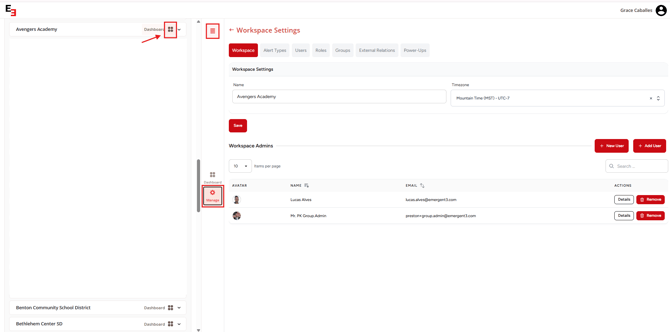
Click the hamburger menu icon in the top-left corner of the app.
-
Select Dashboard next to your organization name.
-
Click Manage to open the admin portal.
Navigate to PowerUps
-
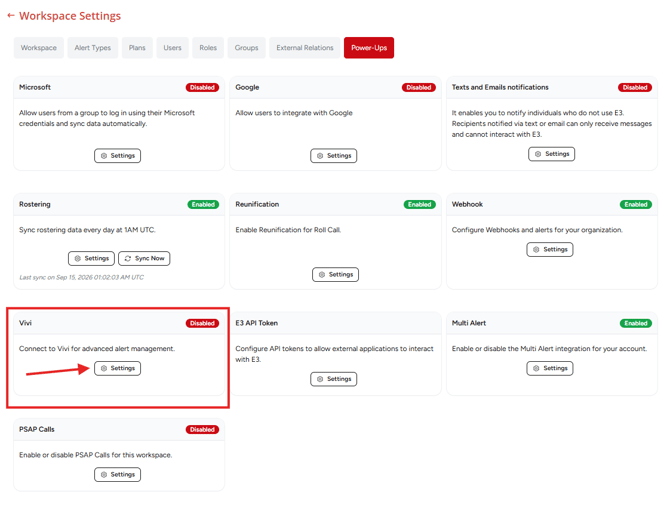
From the admin portal, click PowerUps.
-
Locate Vivi and select Settings.
- Toggle Enable on.
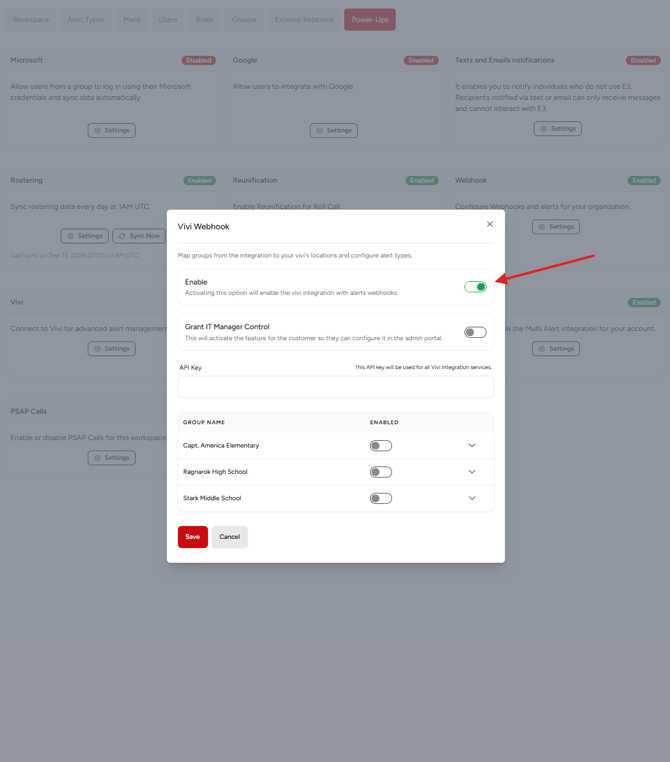
Configure the Vivi Webhook in E3
-
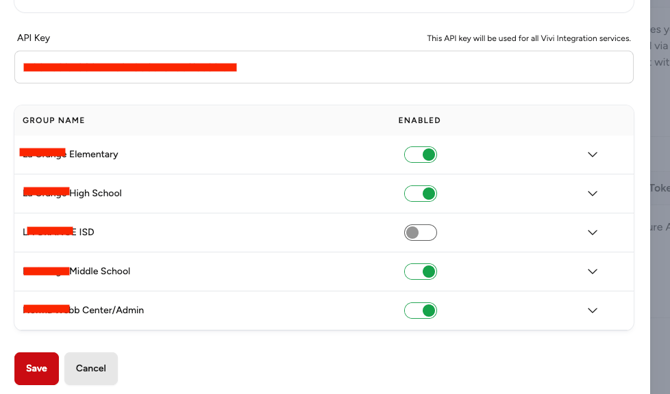
Paste the Vivi API Key into the field. This is for all Vivi locations and services, location IDs will be collected in later steps.
-
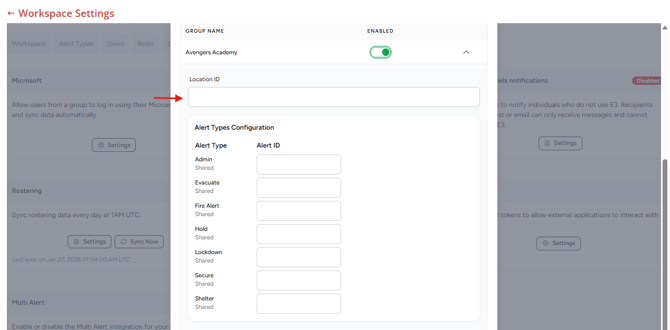
Next Enable the Group and click the drop down menu. Then paste the Location ID into the field. Do this for all groups you'd like to enable.
-
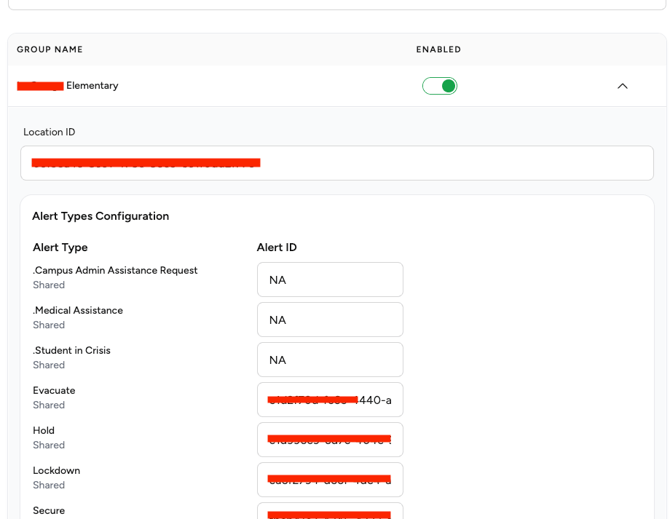
Paste the Alert ID to the corresponding Alert Type in E3. This need to be done at the group level within each group drop down.
Validate the Integration
Send a Test Alert
-
If you would like we can create a test group or sandbox group in E3 and point the location ID to this environment, so you can rest assured and test it all you want 🤓 Just reach out to help@emergent3.com
-
The integration is one-way. E3 sends an alert (trigger) and Vivi screens are activated.
Need more help?
💬 Chat with us.
Click the chat icon in the bottom-right corner of this page to connect with our team instantly.
✉️ Email us.
You can also send us an email at help@emergent3.com.