
Jump to Section
Watch the full video here video
Step 1: Receive the Connection Email
-
Look for an email from E3 with a subject similar to:
“Connect your district to E3”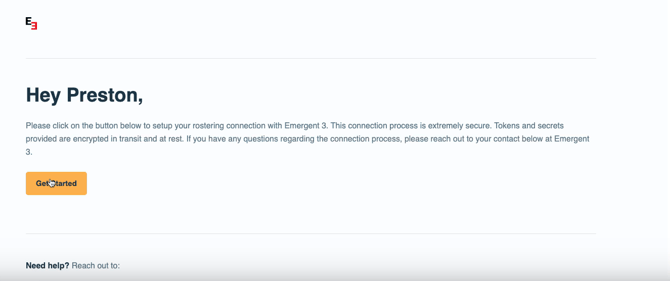
-
Open the email and click on the Get Started.
-
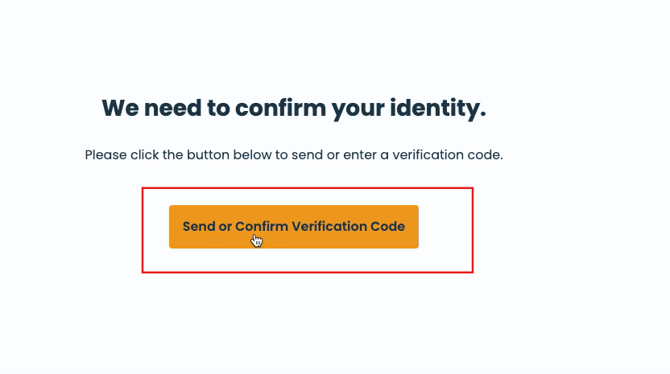
The link will take you to a confirmation page where you must verify your identity.
Step 2: Enter the Confirmation Code
-
You will receive a confirmation code via email or text depending on your settings.

Step 3: Search for Your SIS
-
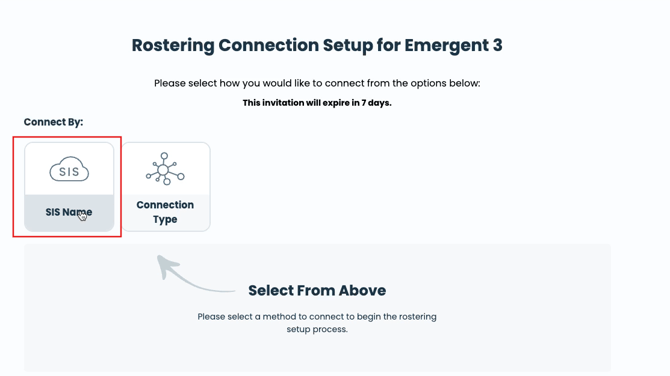
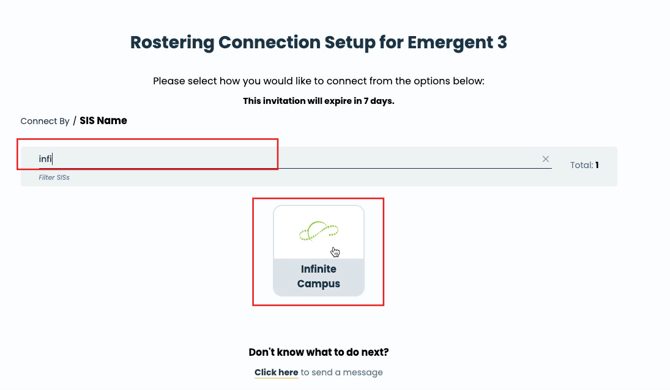
On the connection page, there is a search bar for your SIS.
-
Important: Do not select “Connection Type” – simply search for your SIS system directly.
-
Examples of supported SIS systems:
-
PowerSchool
-
Infinite Campus
-
Step 4: Select Connection Method
-
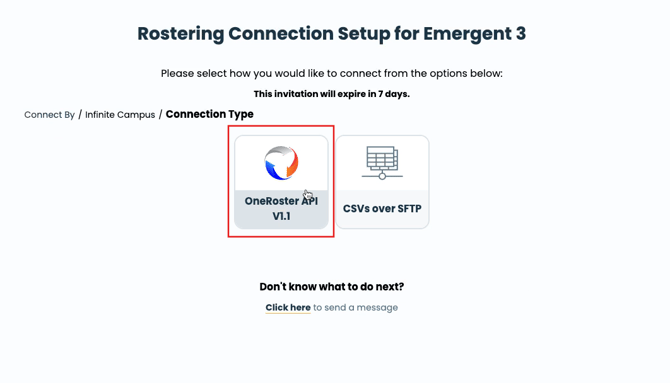
API Connection (Recommended):
-
Most E3 customers (95%) use this method.
-
Select Roster API when prompted.
-
-
SFTP Connection:
-
If your district prefers SFTP, this method is also supported.
-
Step 5: Enter SIS Credentials
-
You will need the following information from your SIS:
-
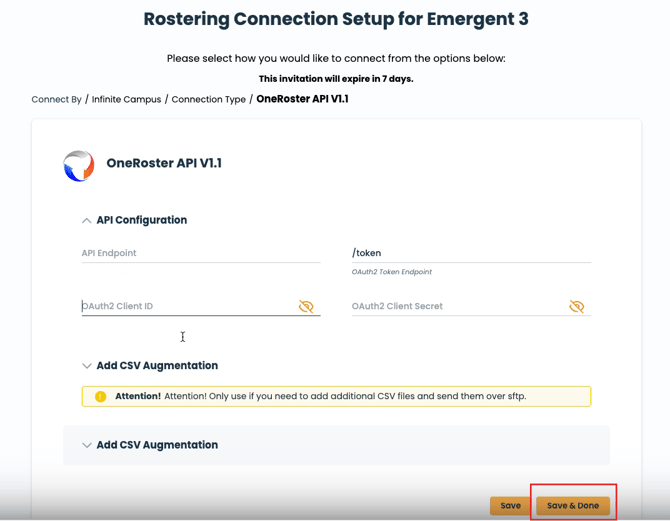
API Endpoint: Typically in the format
https://[yourdistrict].domain/endpoint -
Token: Provided by your SIS for authentication
-
OAuth Client ID and Secret: Required for secure API connections
-
-
Enter these details into the corresponding fields in E3.
-
Click Save and Done to complete the connection.
Step 6: Optional Download Additional Instructions
-
For more detailed instructions:
-
Type your SIS name (e.g., PowerSchool) in the search bar.
-
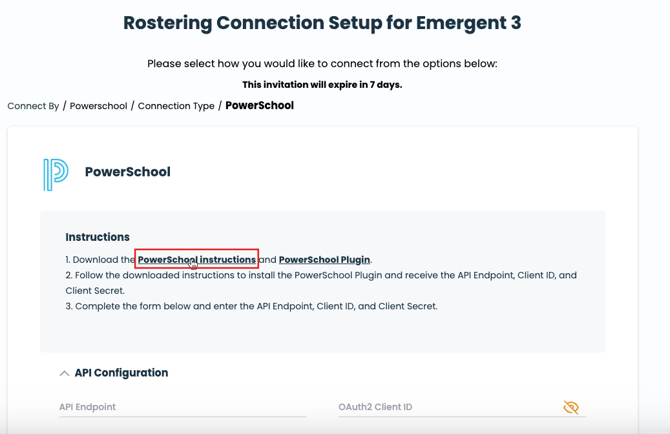
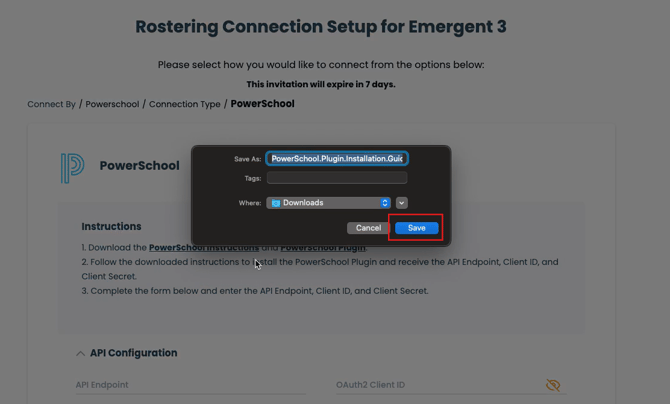
Download the how-to guide for your SIS.
-
-
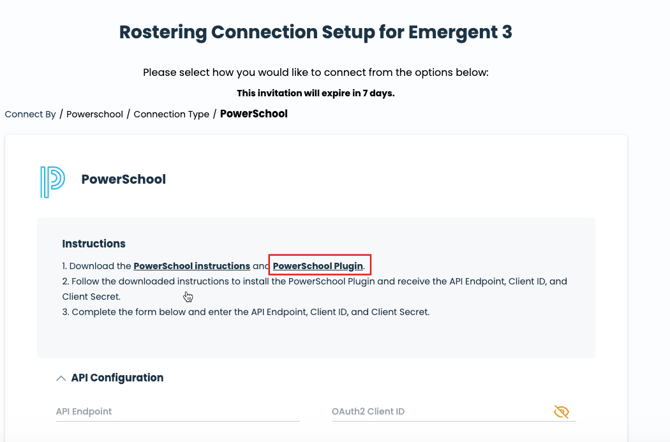
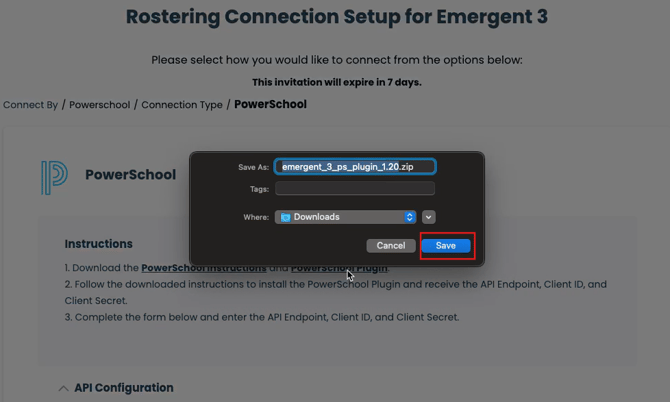
If you are using PowerSchool, download the PowerSchool Plugin as it is required for API connections.
Step 7: Verify Connection
-
Once credentials are entered and saved, E3 will confirm that your SIS is connected.
-
You are now ready to start syncing your roster and student data.
Additional Route: CSVs over SFTP
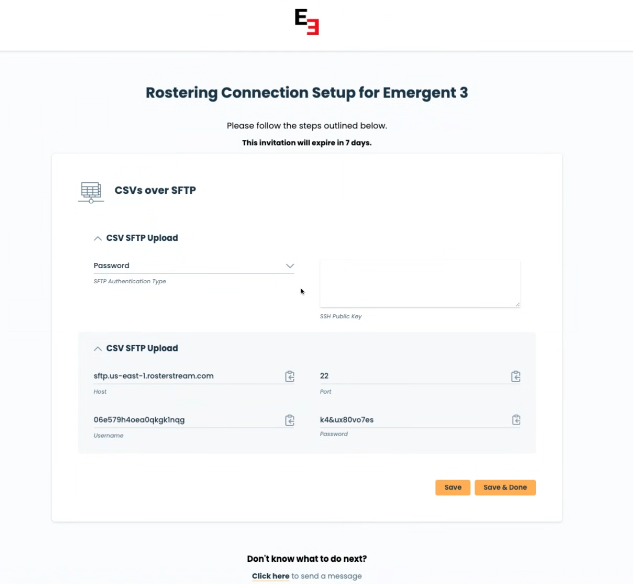
You can augment your API connection with CSVs. Or if you need to do full CSVs over SFTP we support that as well. Note: All CSVs need to be in the One Roster Format.
Need more help?
💬 Chat with us.
Click the chat icon in the bottom-right corner of this page to connect with our team instantly.
✉️ Email us.
You can also send us an email at help@emergent3.com.