
The Offsite feature is recommended when:
- You are working remotely
- You are off campus, at another location or traveling
Note: If you are not required to check-in the Offsite option will not be displayed for you during an active alert.
How to Check In as Offsite During an Alert
When an alert is sent to your group, all users are required to check in and confirm their status and location.
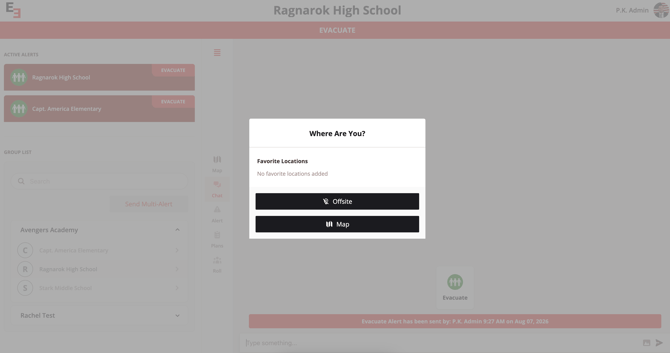
Step 1: Where are you?
The "where are you" pop up will display your favorite location(s), Offsite and Map buttons.Step 2: Select Offsite
Select the Offsite button on the pop up.
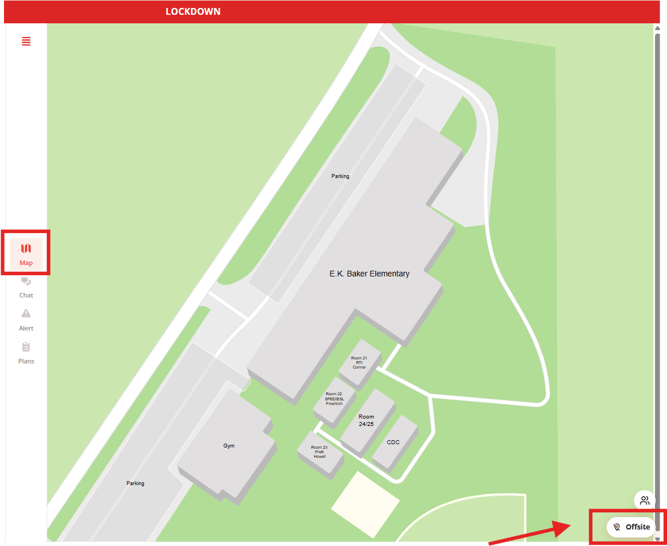
Marking Offsite from the map
If you would like to move your location to offsite, tap the Offsite button located in the lower-right corner of the screen.
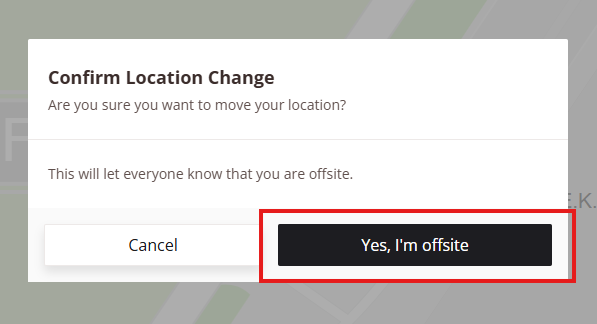
Confirm Offsite Status
A confirmation message will appear asking you to confirm your location.
Click “Yes, I’m Offsite”
If you would like to see a list of all offsite users, you can click on the check-in list (group icon right above the offsite button) and select the offsite filter. 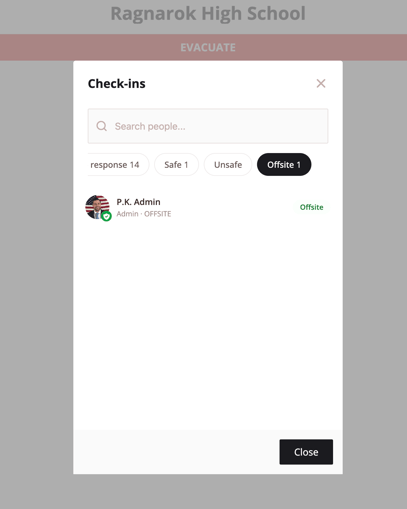
Need more help?
💬 Chat with us.
Click the chat icon in the bottom-right corner of this page to connect with our team instantly.
✉️ Email us.
You can also send us an email at help@emergent3.com.