
Shared Alert Types and Roles are managed at the workspace level and can only be created or edited by a Workspace Admin in Workspace Settings. Group-level Alert Types and Roles, however, can be managed by Group Admins within their respective groups.
If you do not have the required admin permissions, please contact the appropriate admin for assistance.
Scoped alerts are intended to notify a targeted set of users. These alerts can be tailored to specific user groups based on their assigned roles.
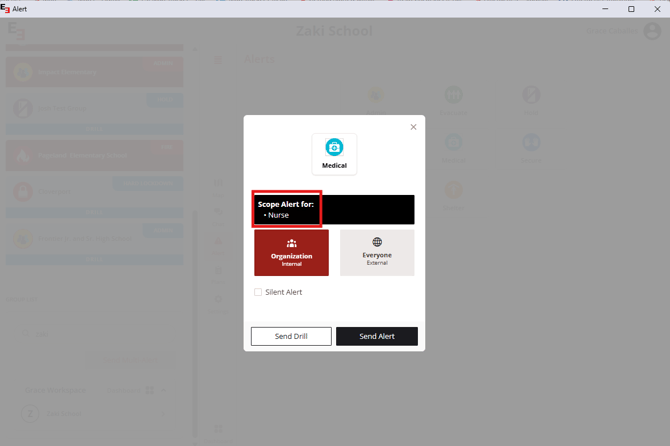
For instance, a Medical Alert can be configured as a scoped alert to only notify users who hold the "Nurse" role.
Jump to Section
Removing alert scopes during an alert
Creating A Custom Role
Step 1:
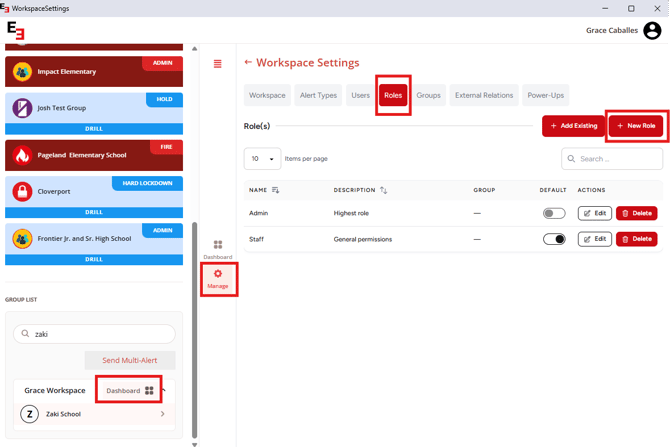
Go to your Workspace > Manage > Roles
Step 2:
Click + New Role.
Step 3:
Enter the role name and select the desired permissions. Click Save to finalize the role creation.
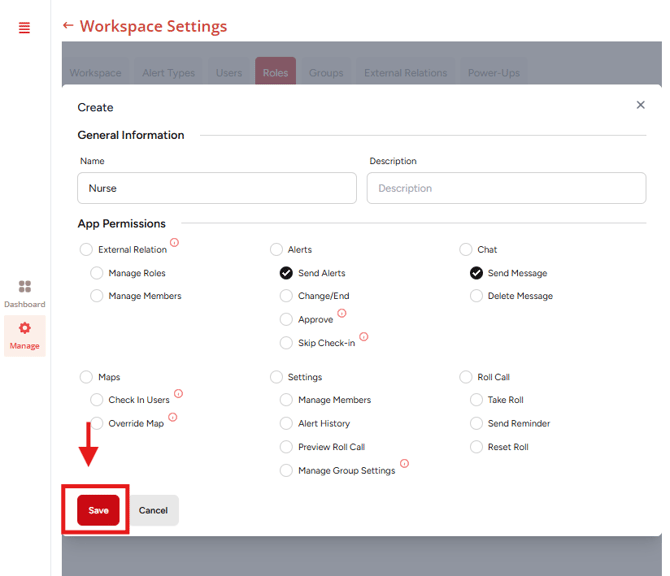
Upon clicking Save, a notification pop-up will appear confirming the successful creation of a role.
Creating a Scoped Alert
Step 1:
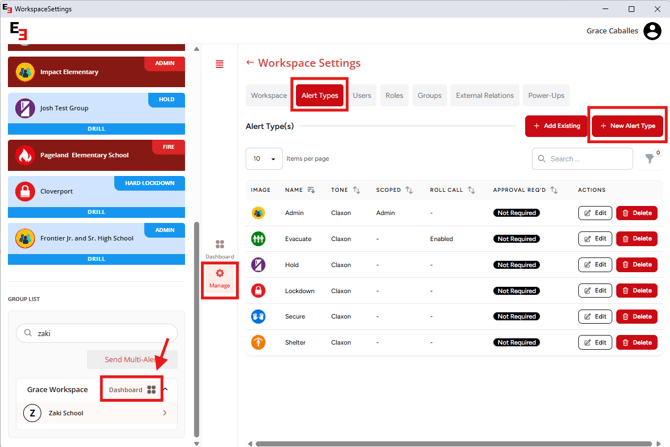
Go to your Workspace > Manage > Alert Types
Step 2:
Click Create New Alert to create a new alert type.
Step 3:
Enter the required information for your scoped alert. In the Scoped Roles section, click the dropdown menu and select the appropriate role.
Click Save once you're done.
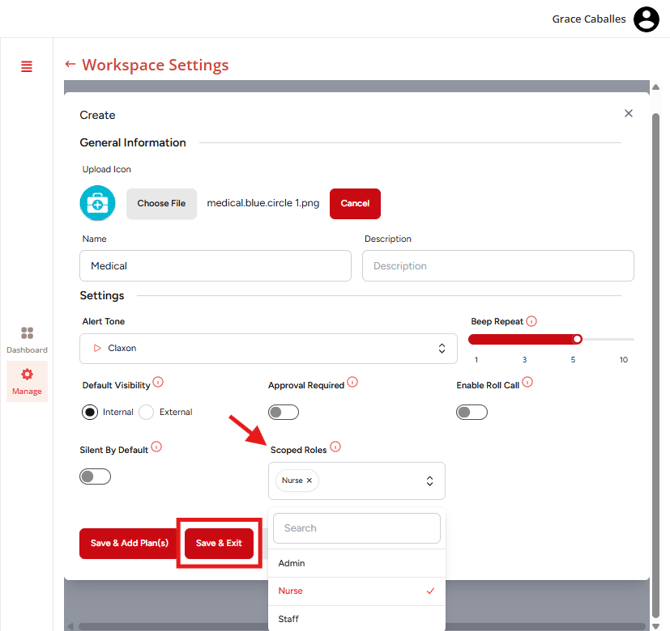
Only users with the selected (checked) roles will receive this alert. If no roles are selected, the alert will be sent to all users.
To know more about what the other alert options do, visit the article below.
Sending Scoped Alerts
Step 1:
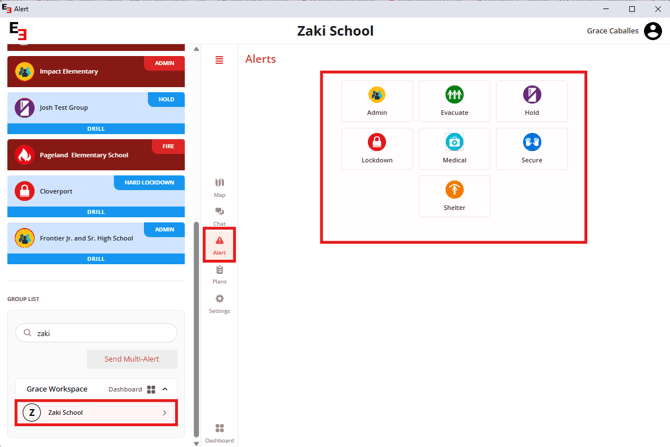
Go to your Group > Alert, then click the scoped alert you want to send.
Step 2:
Review your alert's details including the Scope Alert for section and send the alert.
For more information about sending alerts, visit the help article below:
Removing Alert Scope (During an Active Alert)
Only possible during an active alert.
Remove alert scope will blast the notification out to the rest of the users in the group, regardless of their role.
Step 1:
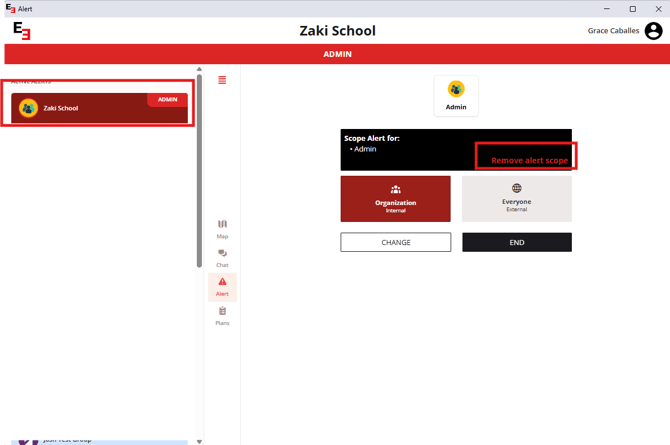
Choose the group that is under the active alerts section and go to the Alerts tab.
Step 2:
Click Remove alert scope.
Step 3:
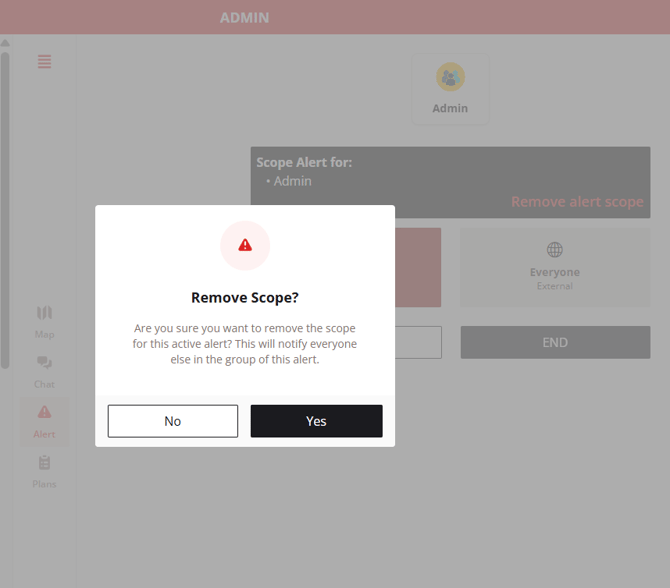
Click Yes on the confirmation message.
There is NO way to bring back an alert's scope once it has been removed.
As you click Yes, all users will immediately receive the alert.
Need more help?
💬 Chat with us.
Click the chat icon in the bottom-right corner of this page to connect with our team instantly.
✉️ Email us.
You can also send us an email at help@emergent3.com.